How to Disable Subtitles & Closed Captions on Your vSeeBox
Sep 12,2025 | vseebox
Watching Video on Demand (VOD) content without distractions is easy with vSeeBox. While Live TV doesn’t support subtitles yet, you can fully customize subtitle settings for all VOD content. Here’s how to turn off subtitles or switch languages in a few simple steps.
Quick Steps to Manage Subtitles on vSeeBox:
-
Play VOD Content
Start any movie or show from your VOD library. -
Open Settings
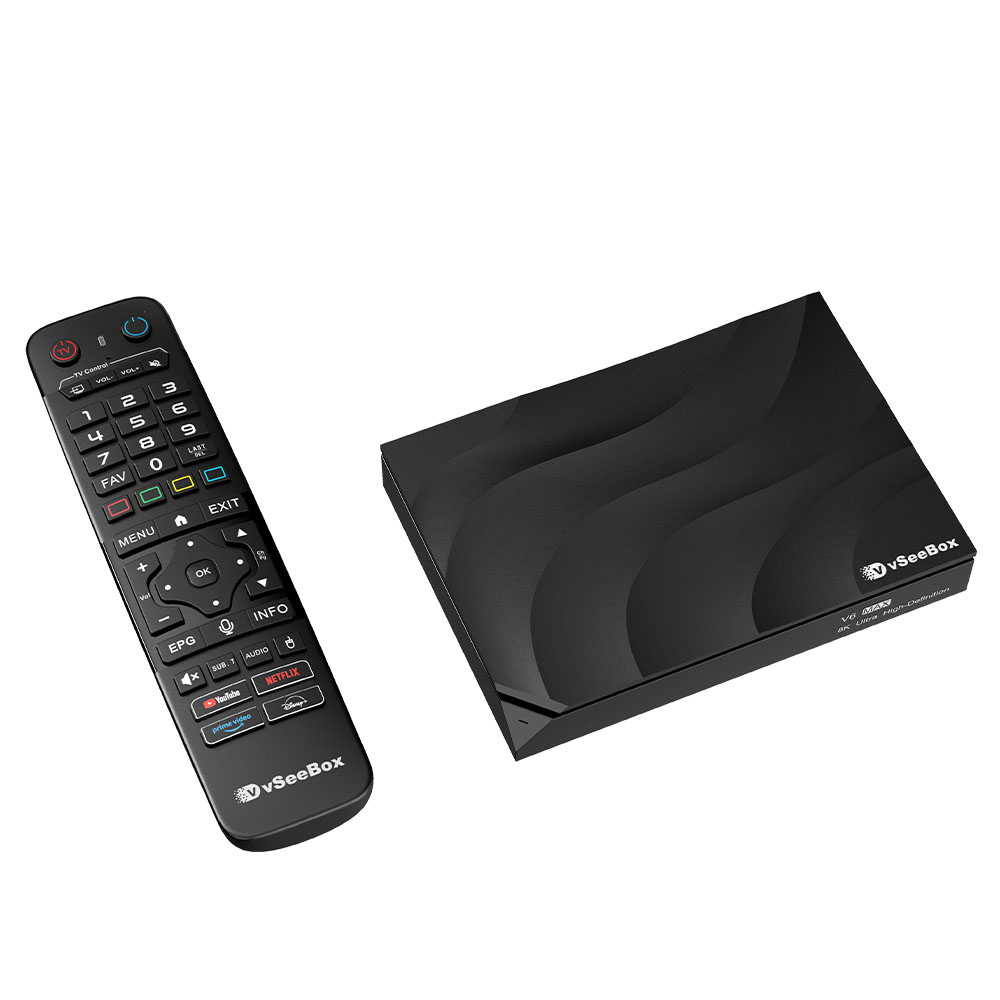
Press the Menu button on your vSeeBox remote during playback. -
Select Subtitle Options
Navigate to the “Subtitles” or “CC” section in the on-screen menu. -
Turn Off Subtitles
Choose “None” to disable all subtitles and closed captions immediately. -
Switch Languages (Optional)
If you prefer subtitles in another language, select your desired option from the list.
Now enjoy your content distraction-free or with customized subtitles!
Note: This feature is currently available only for Video on Demand (VOD)—Live TV subtitles are coming soon.
For more tips, check our FAQ section.
Comment