Cart
/ /

How to Use vSeeBox: Complete Setup Guide & Tips for Beginners

Sep 10,2025 | vseebox

    Basic product includes:

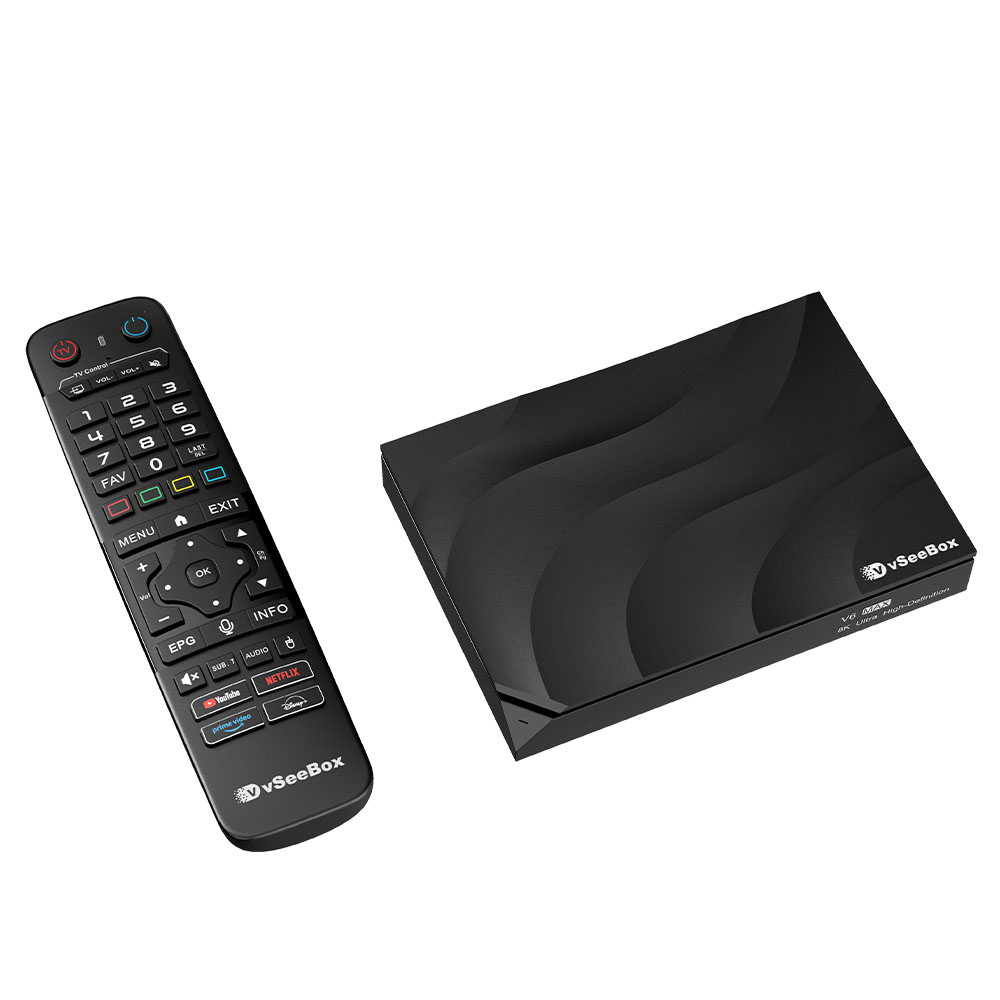
  • vSeeBox  – 1 pc
  • vSeeBox Bluetooth Remote Control – 1 pc
  • Wi-Fi Antenna – 1 pc
  • HDMI 2.0 Cable – 1 pc
  • Power Adaptor – 1 pc
  • User Manual – 1 pc

Basic Setup(More settings)

  1. Connect the vseebox with the power adaptor;
  2. Connect the vseebox to your TV/Monitor with the HDMI cable provided, or your AV Cable if you need to connect with the AV port;
  3. Insert the Wi-Fi antenna into back of the vseebox;
  4. Put two AAA batteries into the Bluetooth remote.

(optional): Connect Ethernet Cable for hardwire network connection
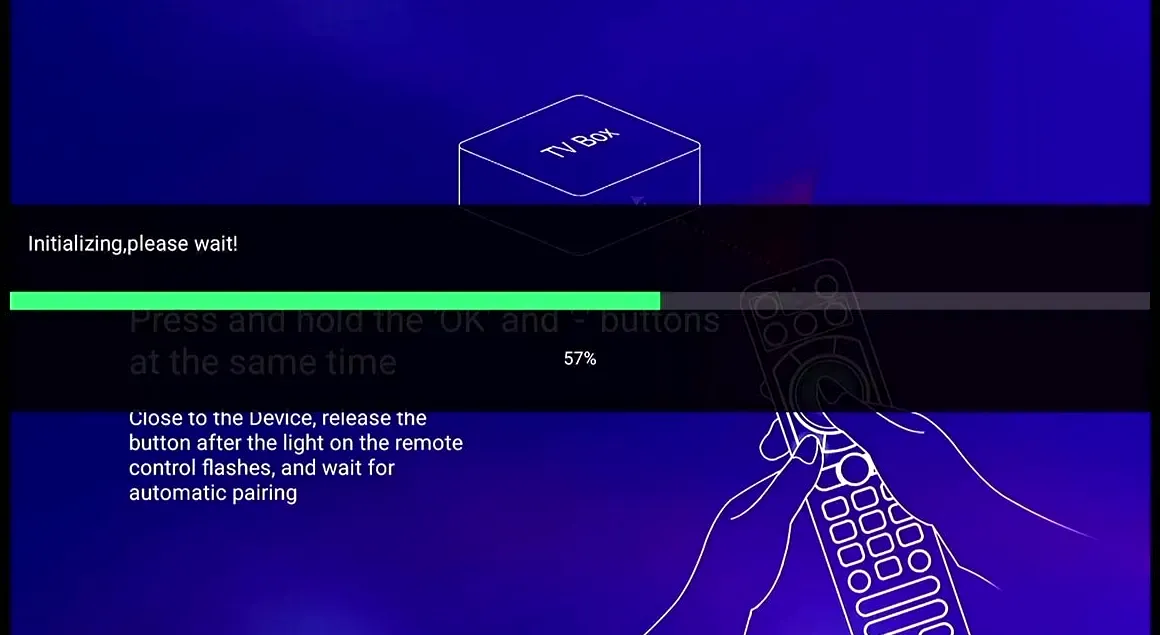
Now finish the setup together with the initial-setup wizard program


1. Wait until initializing progress is completed;👇


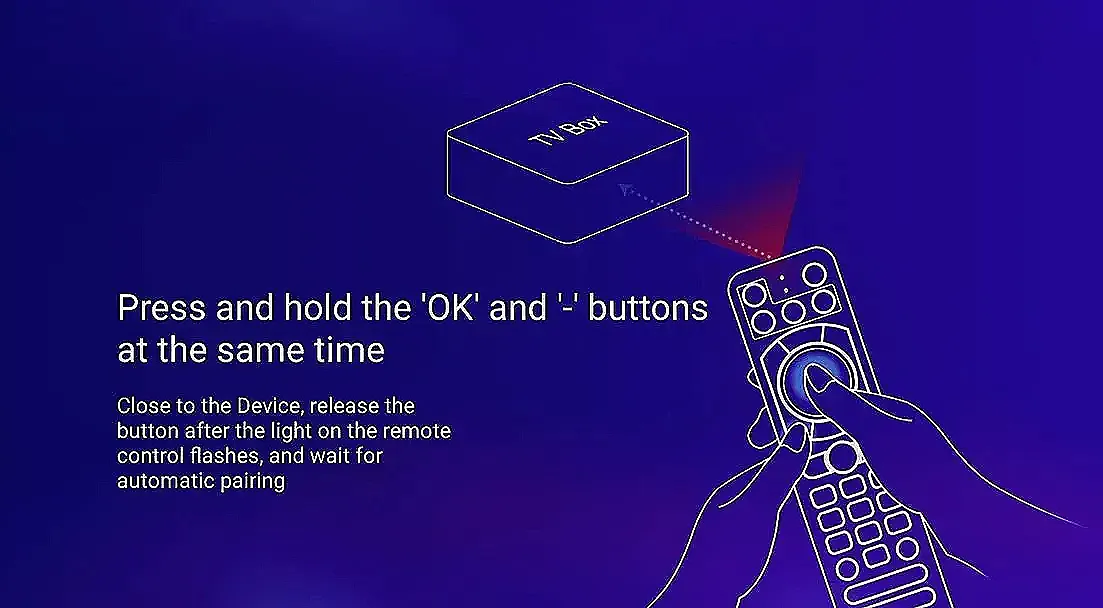
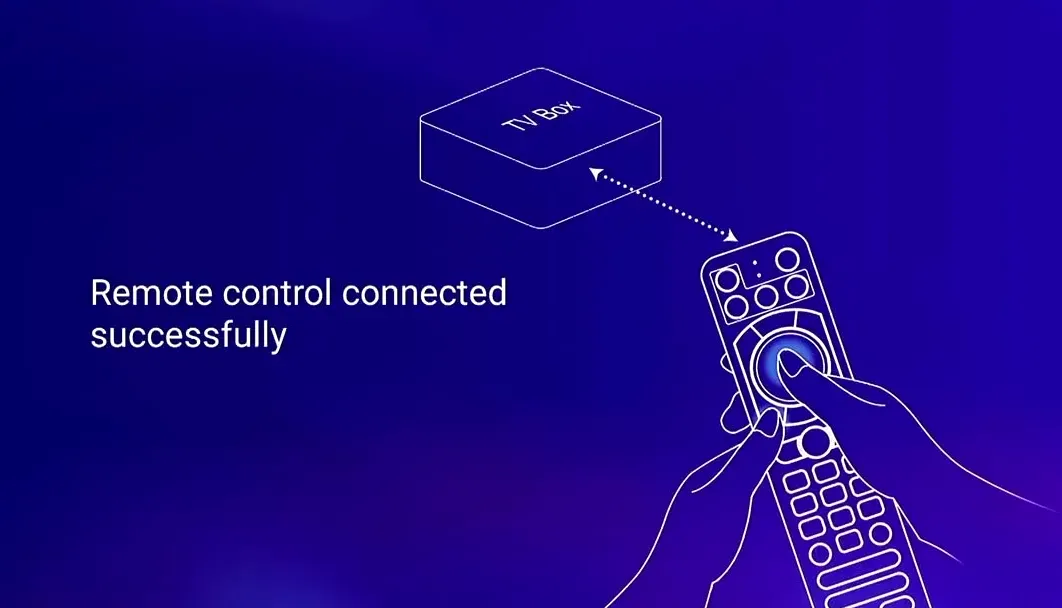
2. Pair the Bluetooth Remote: Hold both [OK] and [VOL-] buttons until the red light flashes on the remote indicator. It shows “Remote control connected successfully” when paired and automatically directs you to the next step;👇


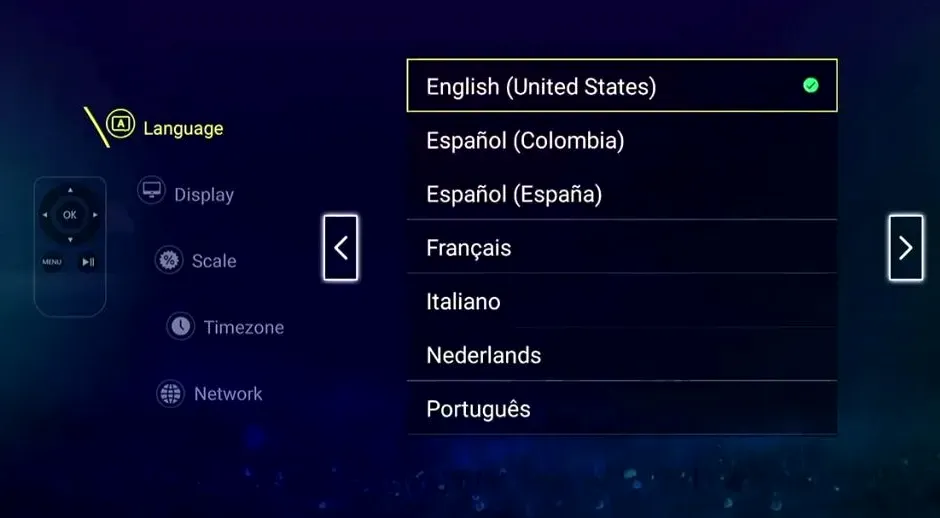
3. Select your Language, then press [Right Arrow] to next;👇


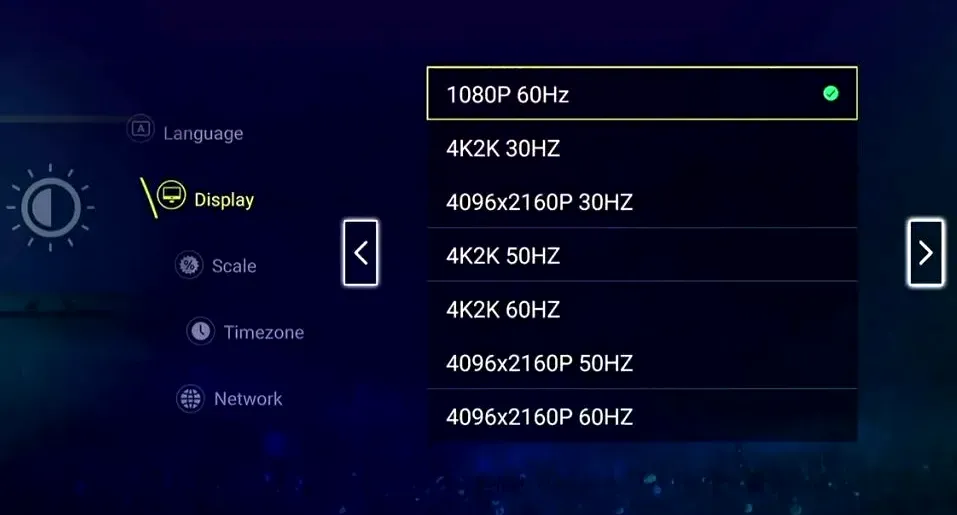
4. Select display options, then press [Right Arrow] to next;

(For HZ option, in general, the higher the refresh rate, the better the watching experience. When images are refreshed faster, the images will appear smoother to your eyes.)👇


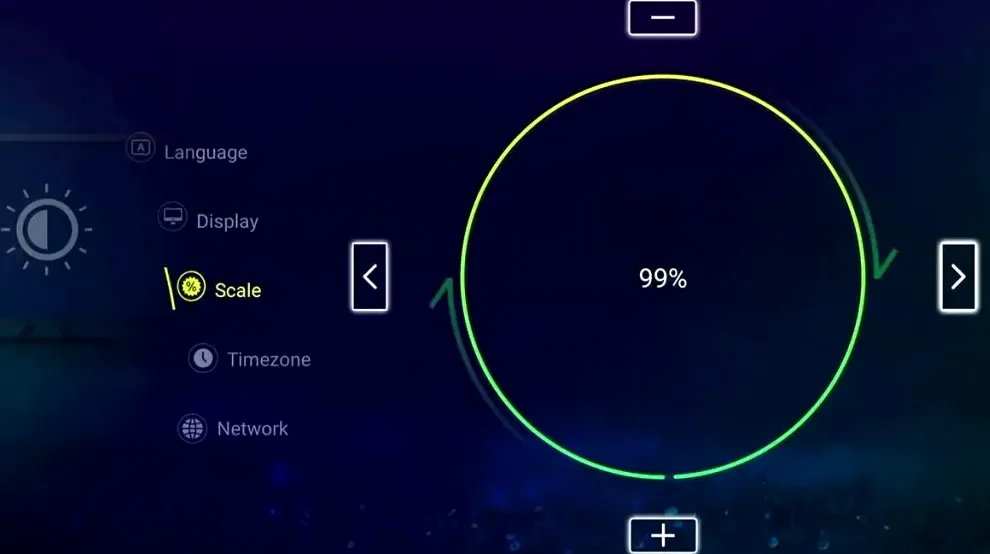
5. Adjust screen ratio, then press [Right Arrow] to next;👇


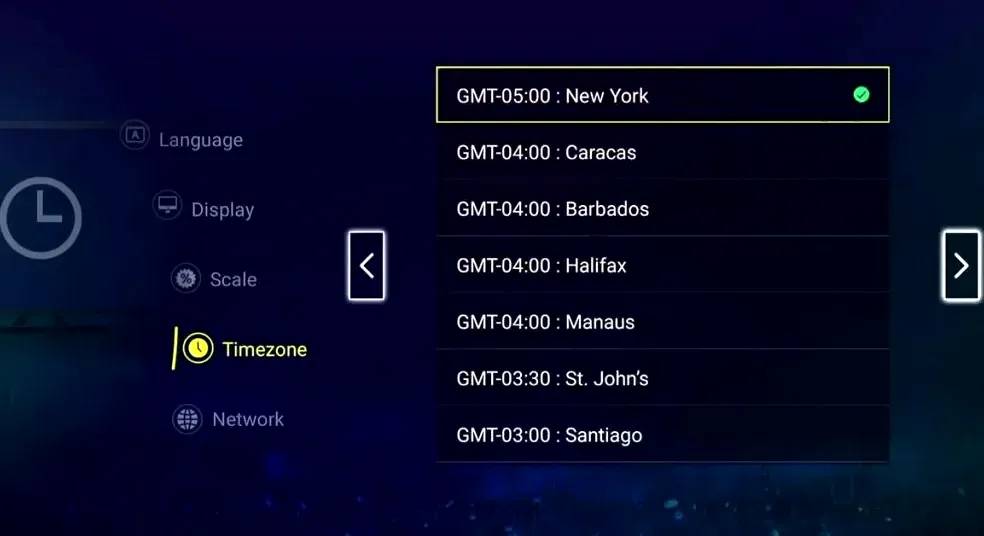
6. Select time zone, then press [Right Arrow] to next;👇


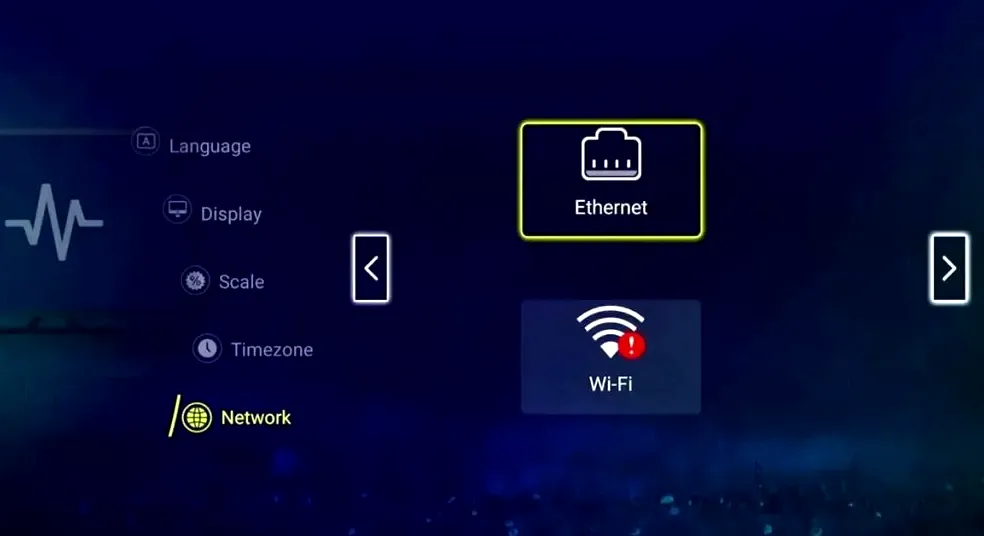
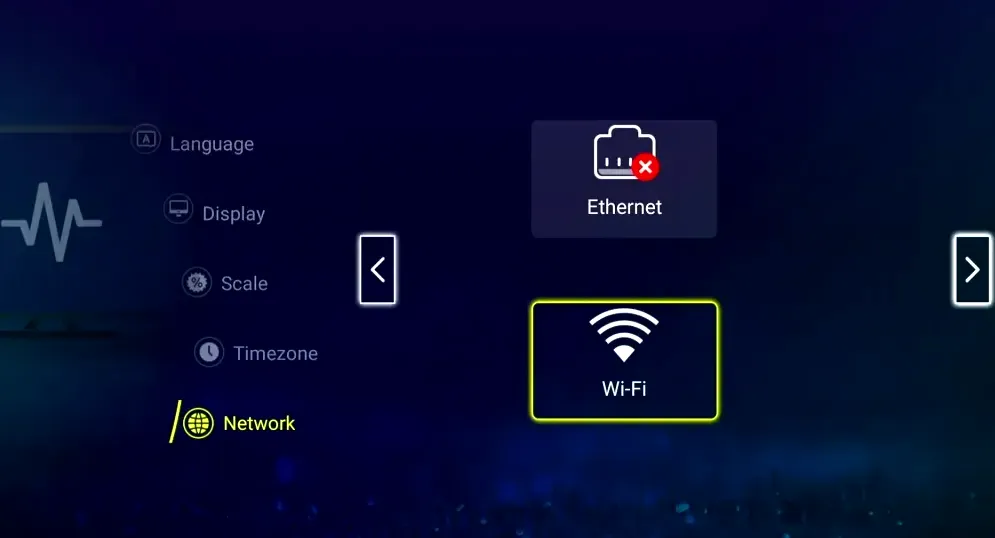
7. Select network with either Ethernet or Wi-Fi connection

7A: by Ethernet connection: 

Connect the box to your router by Ethernet cable and the [x] will disappear on Ethernet option, then press [Right arrow] to finish setup;👇


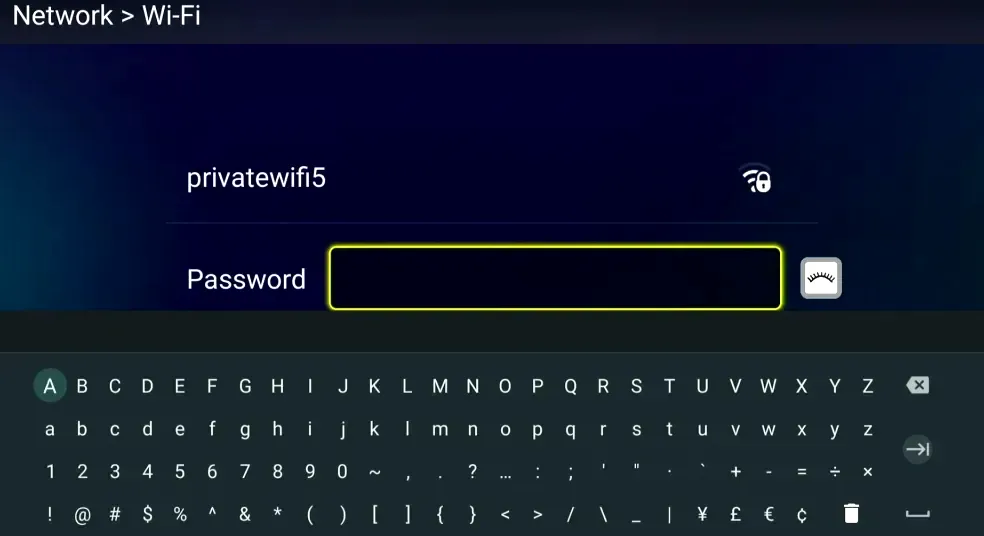
7B: by Wi-Fi connection: 

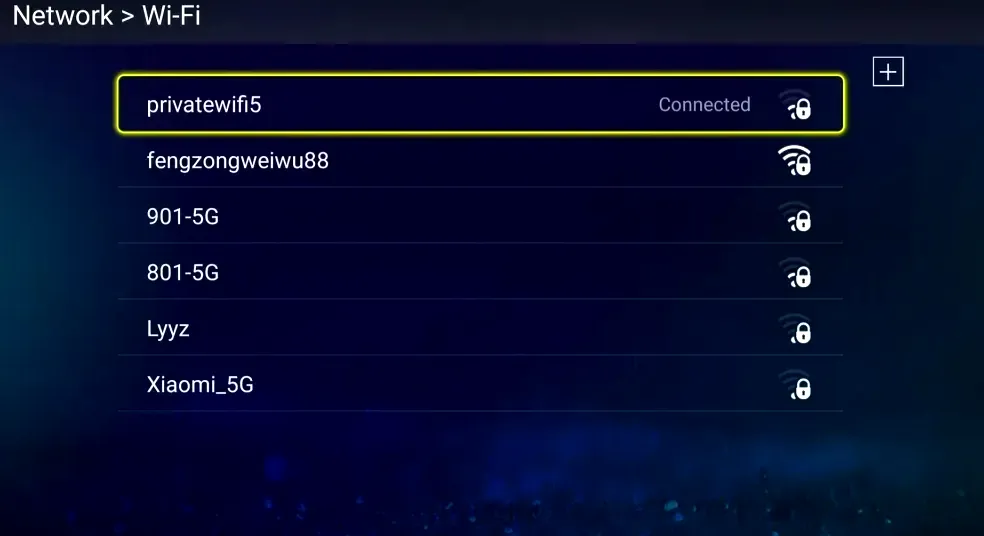
1. Select Wi-Fi option by [OK], then choose your Wi-Fi network, enter password;👇


2. It will show connected if password is correct and network connected. If it shows remembered, then your entered password is wrong, please forgot the network and enter again.👇


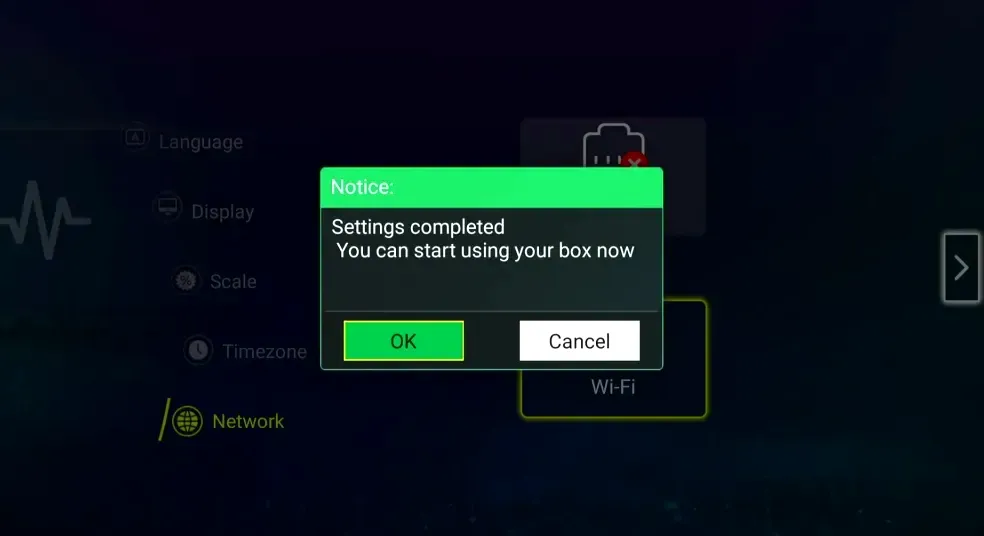
3. press [back] to return to the network setup screen, you will now see the [x] next to Wi-Fi icon disappeared. then press [Right arrow] to finish the setup.👇


Comment

Name
Email
Comment