Cart
/

vSeeBox V3 Plus Instructions

Thank you for purchasing the vSeeBox V3 Plus digital streaming hardware.This device allows you to access the most recent movies, pay-per-view events,

sporting events, and every live channel imaginable. This is all available in your initial purchase

of the hardware; there are no recurring costs. The vSeeBox will provide “over-the-air” updates

as long as the device is connected to the internet.

Note: You will need two AAA batteries for the remote, as it does not come with them.

Unboxing, Physical, and Software Setup

What’s included in the box?

  • vSeeBox - V3 Plus Device
  • Power Adapter
  • HDMI Cord
  • Remote Control

How do I connect the box to the TV?

  1. When looking at the back of the box, connect the power adapter to the far right port on

the back of the vSeeBox.

  1. Connect the vSeeBox to your TV with the HDMI cable provided. If you already have an

HDMI cable plugged into your TV you wish to use, you can use it as well.

  1. Optional: If you are connecting your vSeeBox with an Ethernet cable for a direct internet

connection, connect the vSeeBox to your router now.

  1. At this point, your vSeeBox should be powering on, and you will see “Boot” on the box's

display screen. Ensure the source on your TV matches whatever HDMI port you plugged

the box into on your TV.

How do I proceed with the software setup?

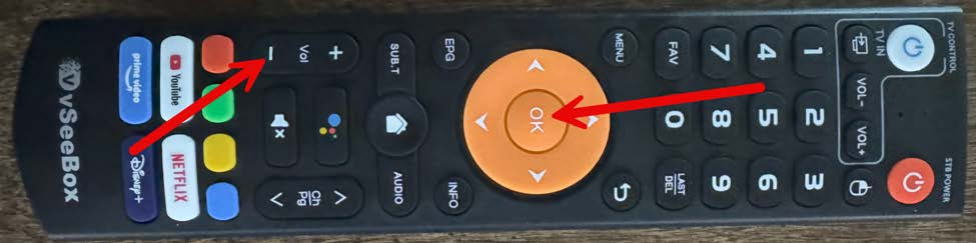
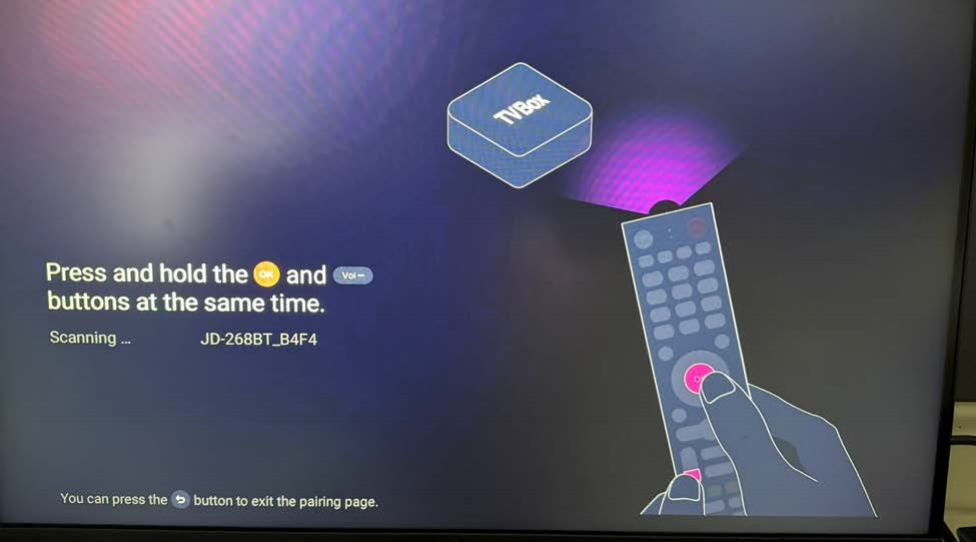
  1. After the box boots up for the first time, it will bring you to a screen to pair the remote

control. Ensure you have put the batteries into the remote, then press the “OK” and

VOL—” buttons at the same time while pointing the remote in the direction of the box.

The screen will tell you when to release the buttons and when the remote has been

paired successfully.
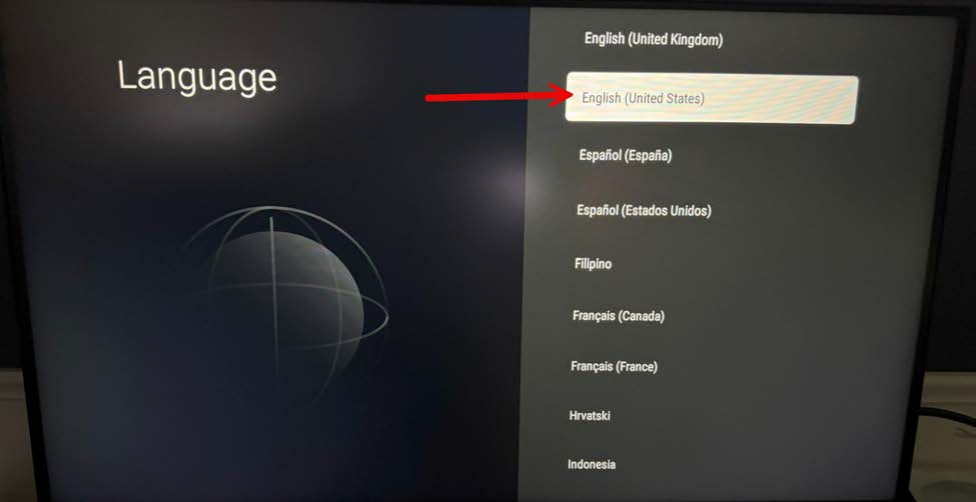
  1. Select the language, then press OK to proceed to the next step.

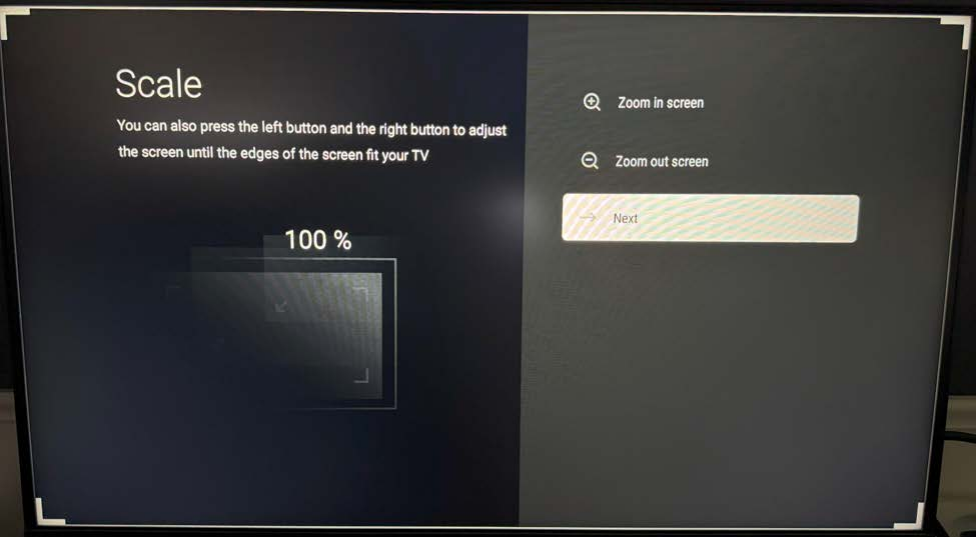
Adjust the screen ratio if needed by selecting Zoom in screen or Zoom out screen,
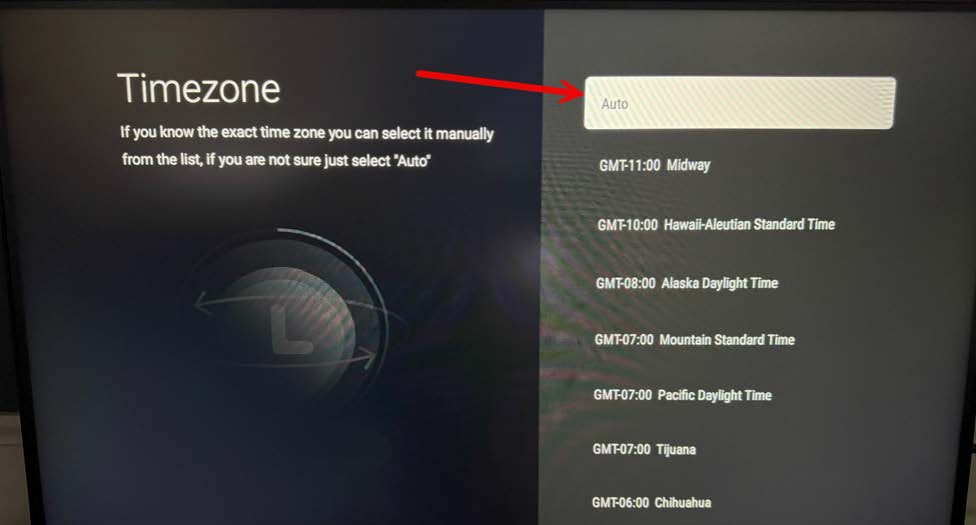
4.Select the time zone and then press the OK button.
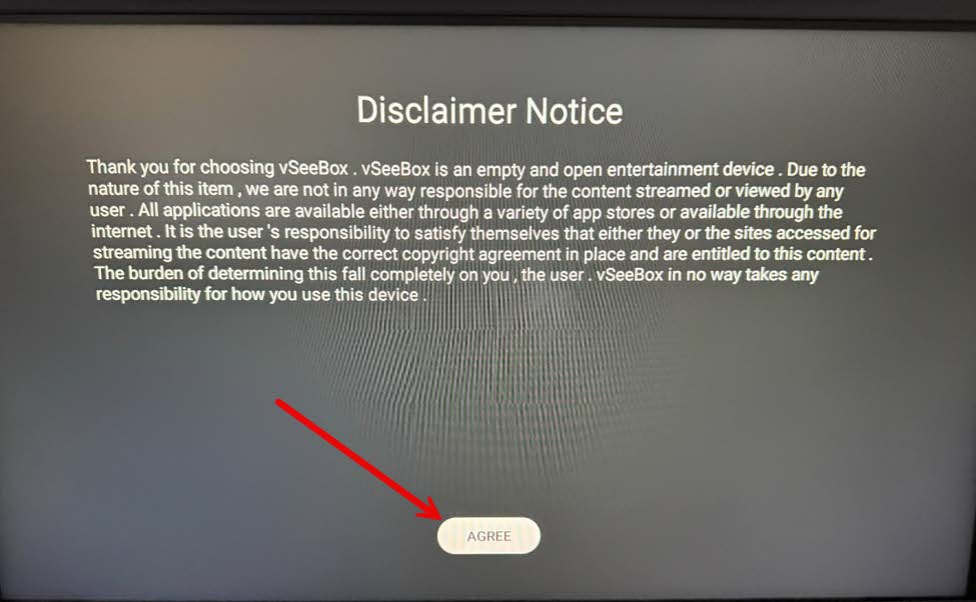
  1. Read the disclaimer message, then press the OK button.
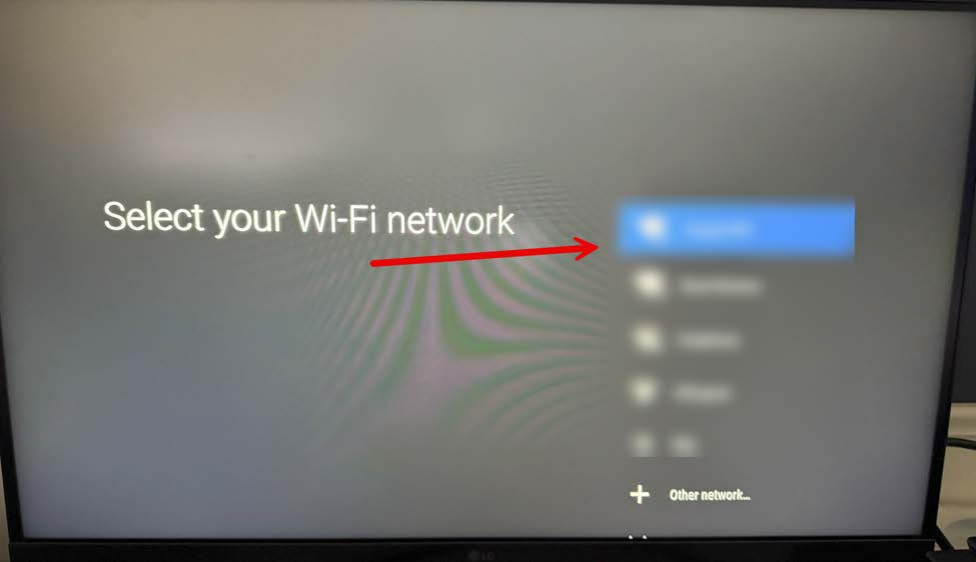
    1. If using Wi-Fi, you will now be prompted to select your Wi-Fi network. Select your Wi-Fi

    network from the list and input your Wi-Fi password; you should see a Connection

    Successful message.

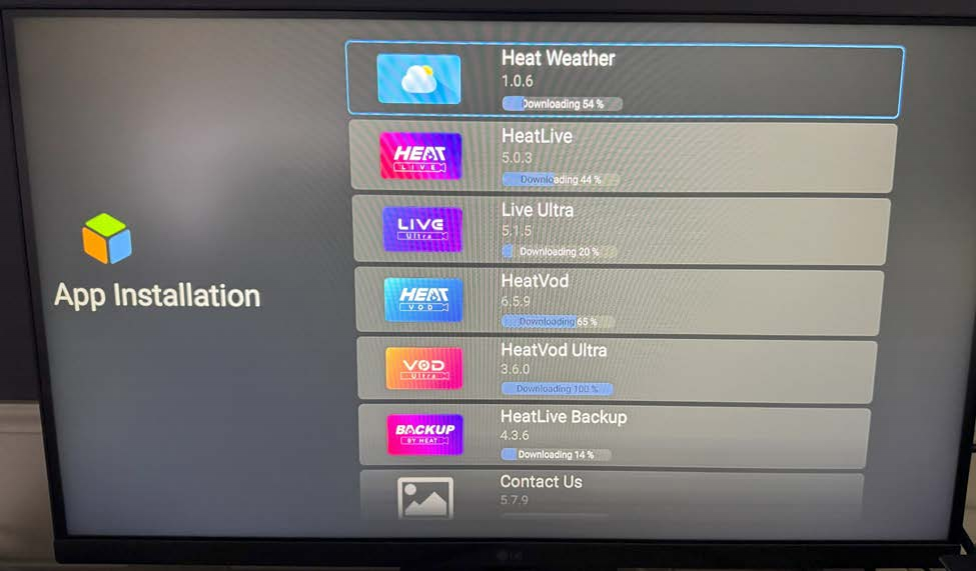
    1. After connecting the device to the internet, the box will begin downloading and installing

    the applications and the default configuration. This usually takes around five minutes,

    depending on your connection speed.

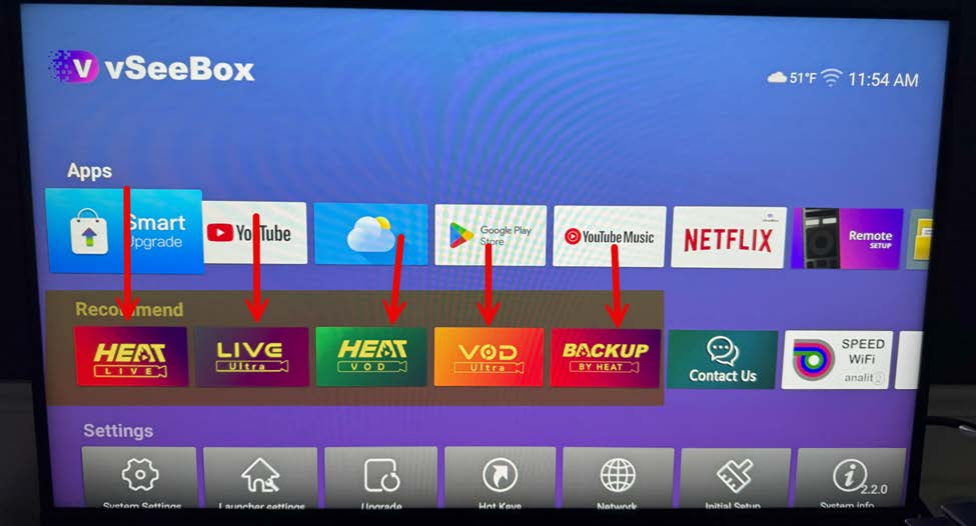
    1. After the installation is complete, the box will show the main screen with all of the

    available applications.

    Programming the vSeeBox Remote to the TV

    1. To program the vSeeBox remote to your television to control the volume and power

    on/off, you will need the original remote control for the TV.

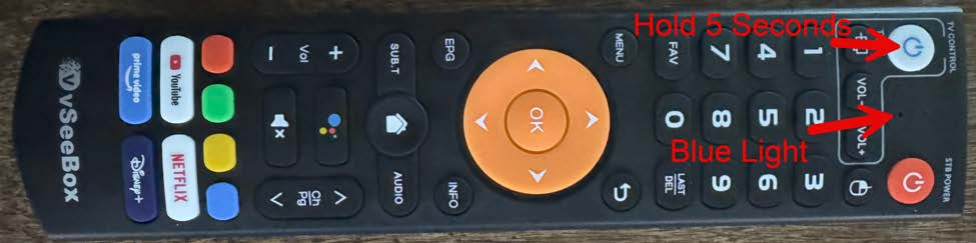
    1. On the vSee remote, hold the blue/white TV Control power button in the top left corner

    for 5 seconds. The blue light on the remote will go from blinking to solid. Once it goes to

    solid, it is in pairing mode.

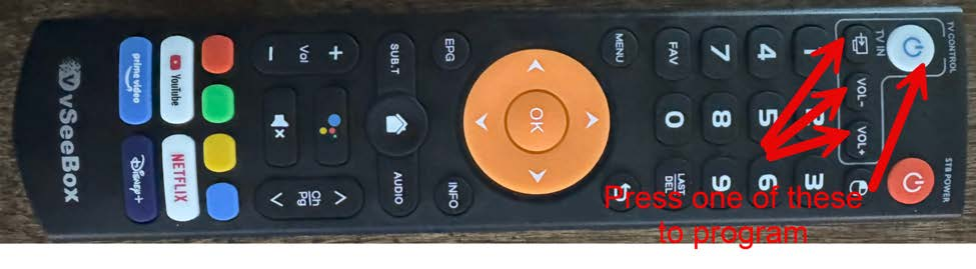
    1. On the vSeeBox remote, press one of the four buttons in the top left corner to program.

    (Power On/Off, TV IN, VOL -, VOL +). The blue light will begin blinking slowly, which

    means it is ready to pair with the button you just pressed

    1. Take the original TV remote and point the remote controls together so the eyes are

    facing one another. Then, press the button you are trying to program for the TV. For

    example, if in Step 3 you pressed VOL -, press VOL— on the TV remote as well, with

    the remotes facing each other. If successful, the blue light will flash three times.

    1. Continue this process for the remaining buttons. Note: The “TV IN” button doesn’t need

    to be programmed if you aren’t switching sources on the TV.

    1. After you have completed the programming of the TV remote, press the OK button on

    the vSeeBox remote to exit pairing mode.

    It is recommended to set the TV volume to the loudest you want it using the TV controls

    on the top left corner of the remote. After setting the volume as loud as you want it, you

    can use the Vol + and - buttons at the bottom of the remote, which control the audio of

    the box itself.

    Powering the Device and TV On/Off

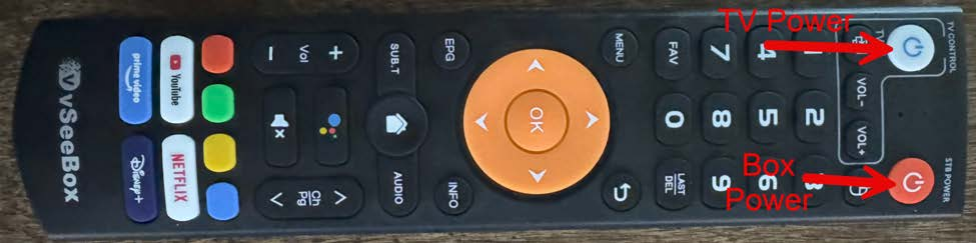
    To power your vSeeBox on and off, simply press the Red Power Button on the top right corner

    of the remote.

    To power on and off your TV after programming it with the steps above, you can use the

    White/Blue Power Button on the top left of the remote.

    Streaming Apps on vSeeBox

    Note: It is not recommended to use the streaming applications on the vSeeBox, such as

    YouTube, Netflix, Disney+, or Prime Video, as they are not stable.

    The V3 Plus comes with five streaming applications, which are outlined below:

    Heat Live

    This is the application that will be used for all Live TV channels.

    First Time Launch

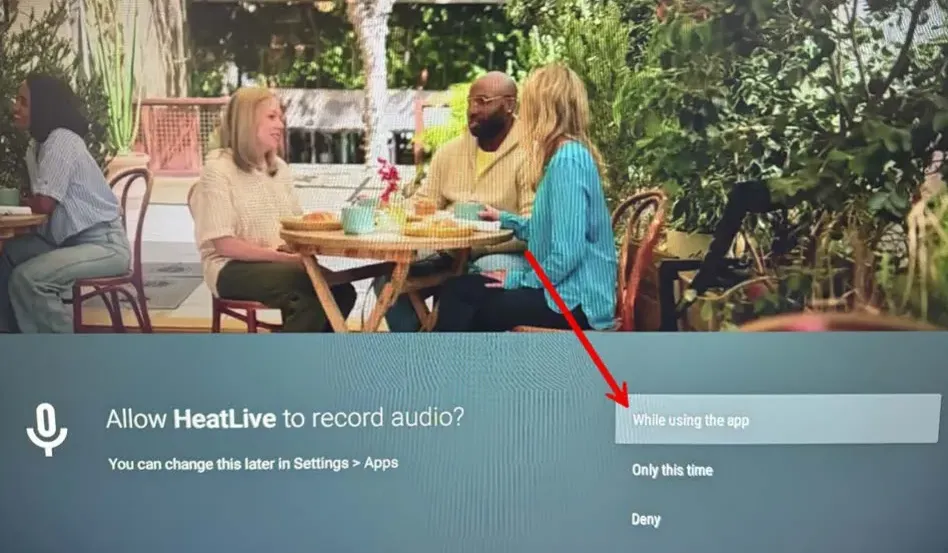
    When launching this app for the first time, you will receive a permission message; just select

    Allow and press OK.

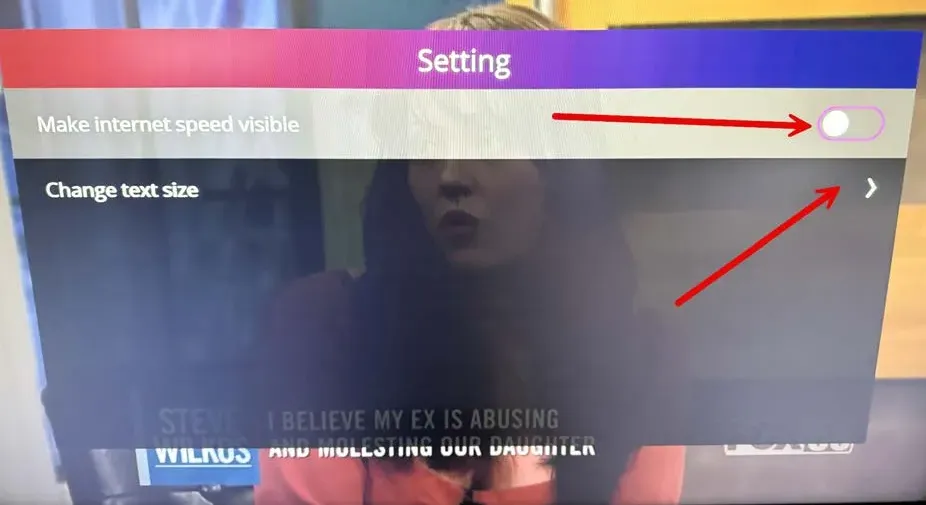
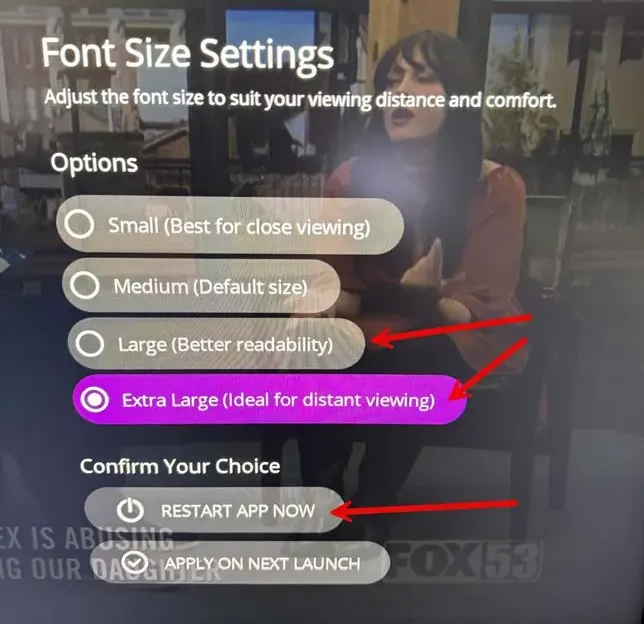
    Optional: Press the Menu button on the remote, then go to Setting and press OK. Turn off the

    Make internet speed visible option, then select Change text size → select Large or Extra

    Large, then click on RESTART APP NOW.

    TV Guide Option 1

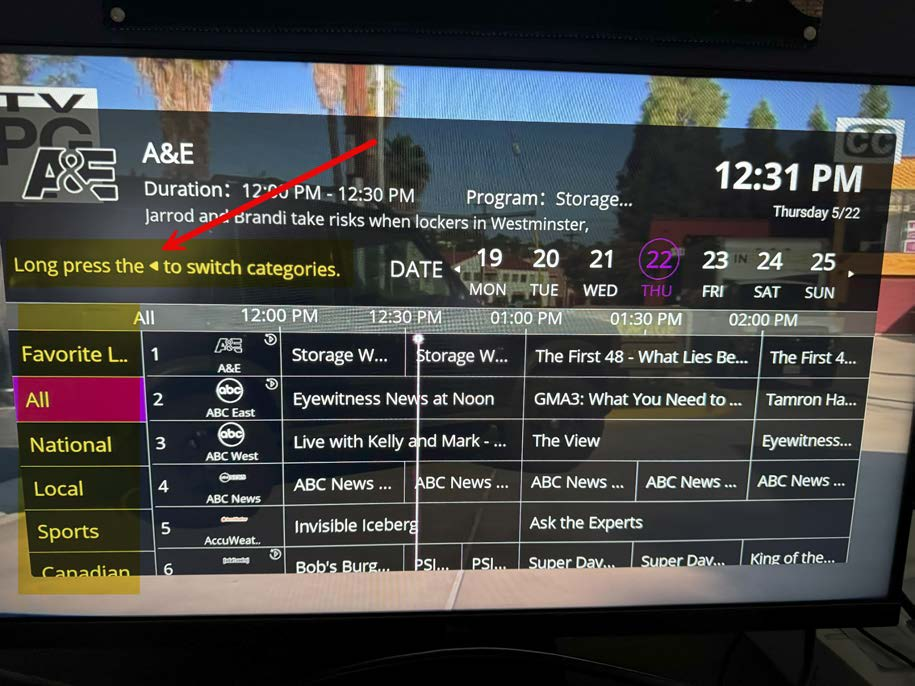
    There are two different TV guide options. The first is available if you press the EPG button on

    the remote.

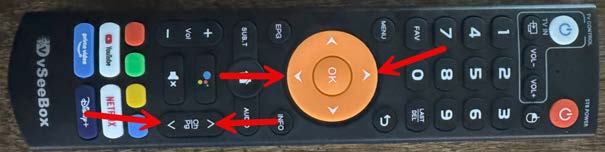
    On the EPG guide, you will notice a list of categories on the left side. To get to the left side to

    select a category, hold the left arrow button next to OK.

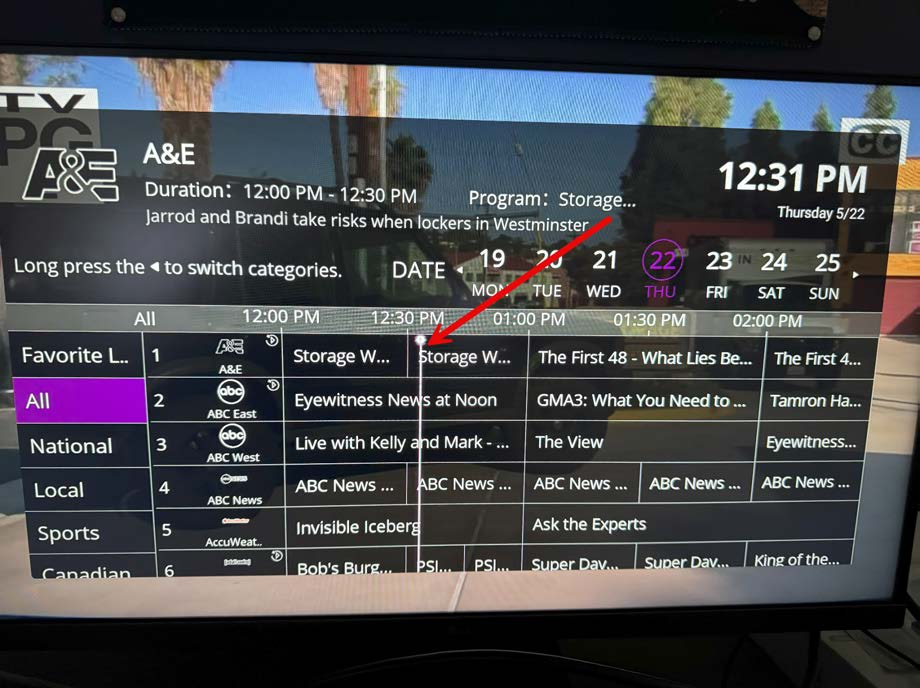
    You will notice a line down the guide; this is the current time.

    You can use the up/down arrows to navigate through the guide one by one, or you can use the

    Channel Up/Down button to navigate by page.

    To change the date of the guide, press the up button and switch the date with the left/right

    arrows.

    Note: When you change the date, be sure to check the times at the top of the guide as they will

    default to 12 AM. To go back to the current time, just move to the right and find the line on the

    guide that indicates the current time.

    TV Guide Option 2

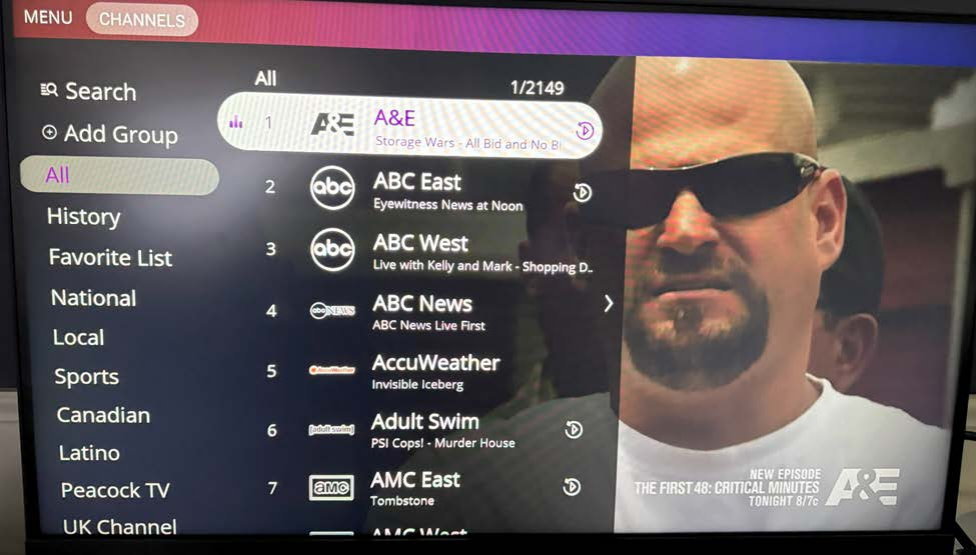
    For the second guide option, when you are on a channel, press the OK button.

    This guide also allows you to switch categories and search for a specific channel. It also allows

    you to set favorite channels, which is in the next section.

    Favorite List

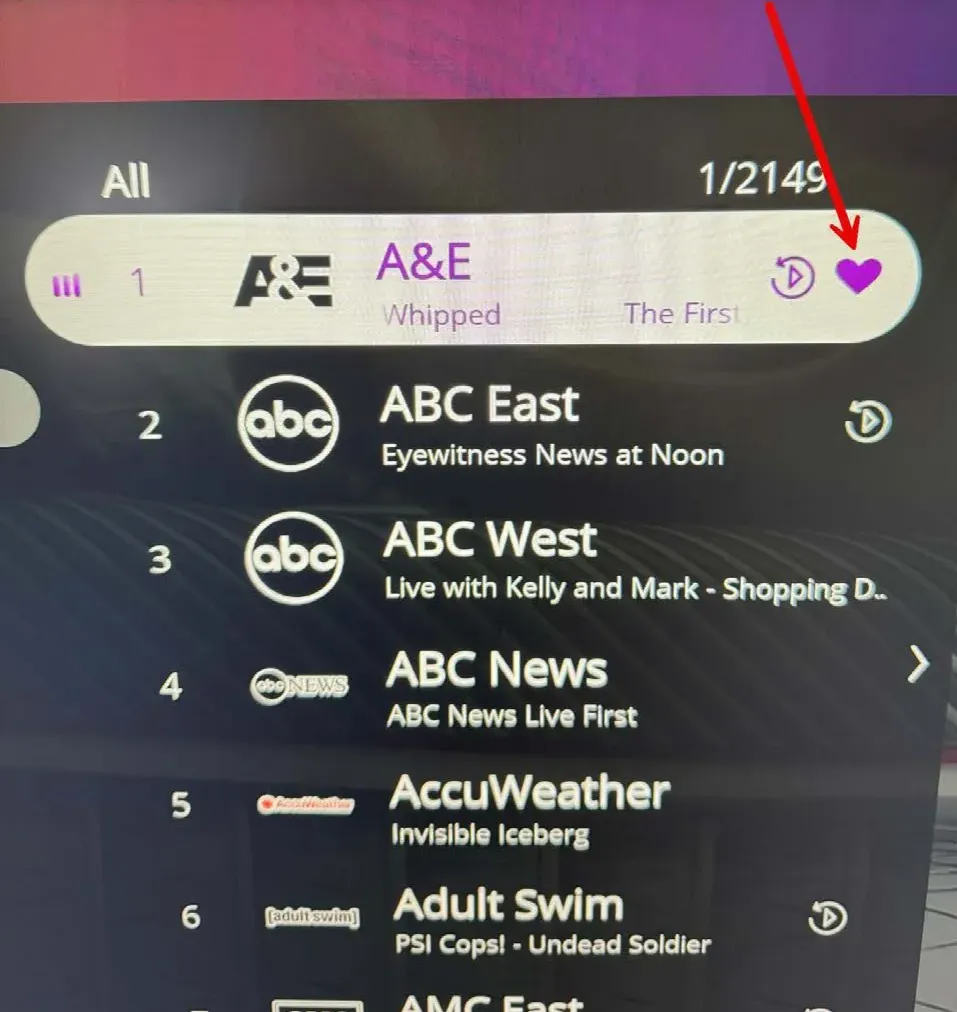
    Additionally, you can set a Favorite Channel, which will appear in the Favorite List on the left

    side. To set a favorite channel, find the channel you want to make a favorite in the second

    guide, highlight it, and press and hold the OK button. You will notice a Heart appears next to the

    channel. To remove a favorite, perform the same steps, and the Heart will disappear.

    Voice Assistance

    The last item I will touch on is the Voice Assistance button. This button is under the Home

    button and above the Mute button. It has a blue, red, green, and yellow set of circles. When

    pressing this button for the first time, you will receive a permission request. Select "While using

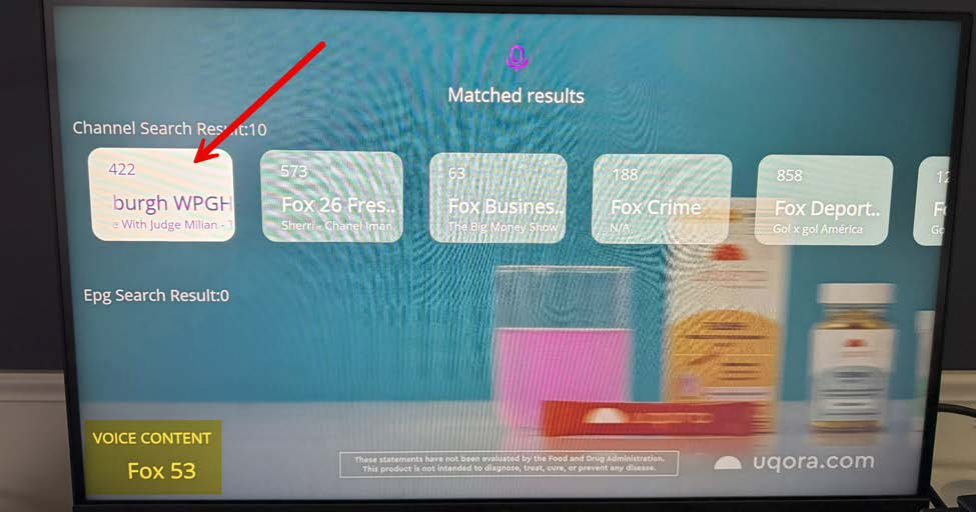
    the app." You can push this button and speak a channel name into the remote, and the results

    will display as follows. This is the quickest way to find a channel without looking through the

    guide or knowing the number

    Live Ultra

    This is another app that has live channels. In the unlikely event a channel is missing from Heat

    Live, you can use this channel to see if it’s available. All of the above information for Heat Live

    also applies here.


    Heat VOD

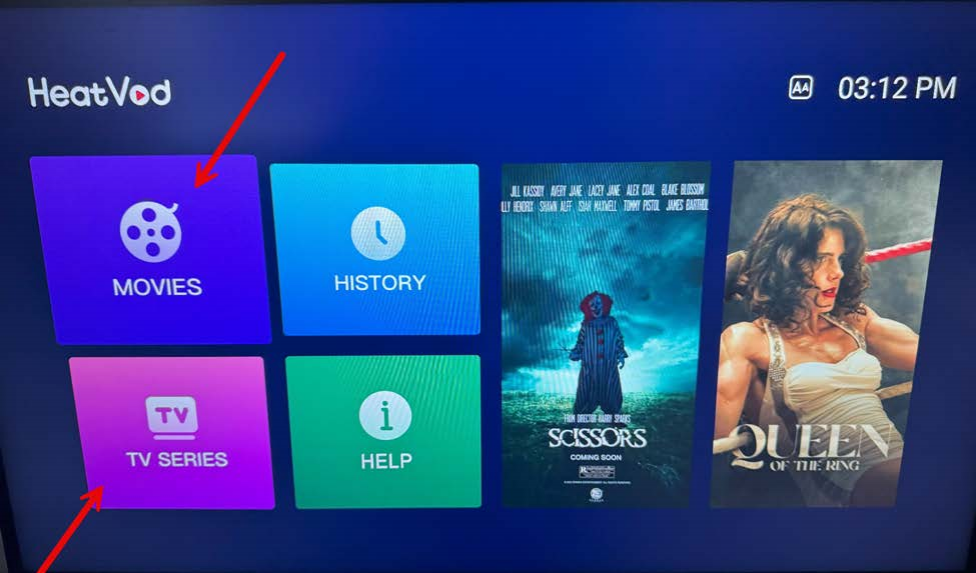
    This app is used to access movies and TV series.


    After opening the app, select which you would like to view, TV Series or Movies. You can also

    view your History of previously watched items.


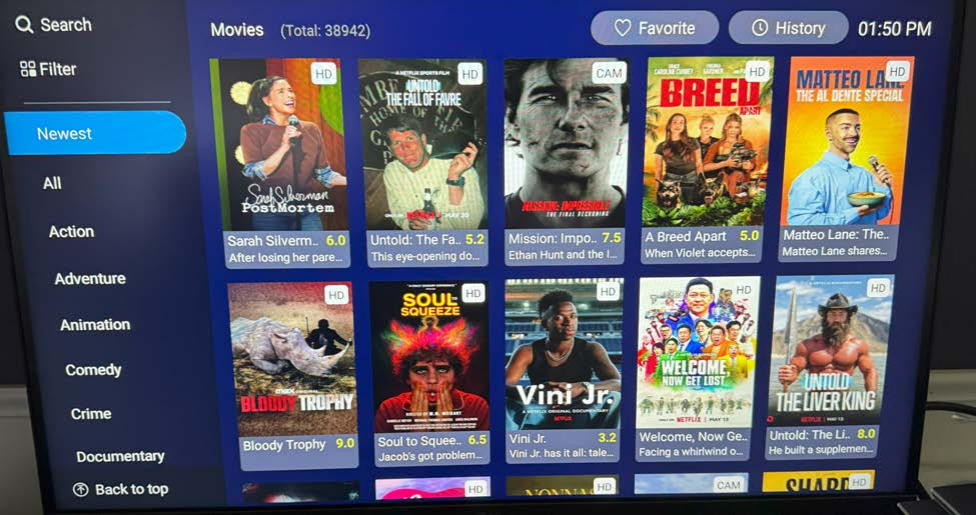
    You can browse through the category list on the left or click the Search option and search for a

    movie or series by title.

    Note: If you are searching for a TV Series or Movie, make sure you select the correct one from

    the home screen, as it won’t show all results for both.

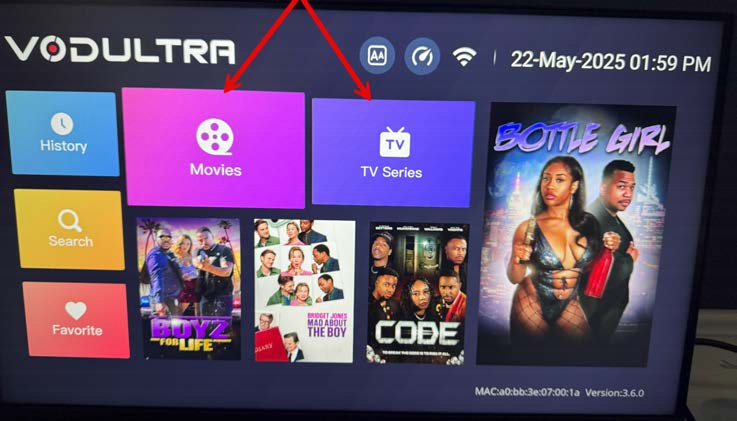
    VOD Ultra

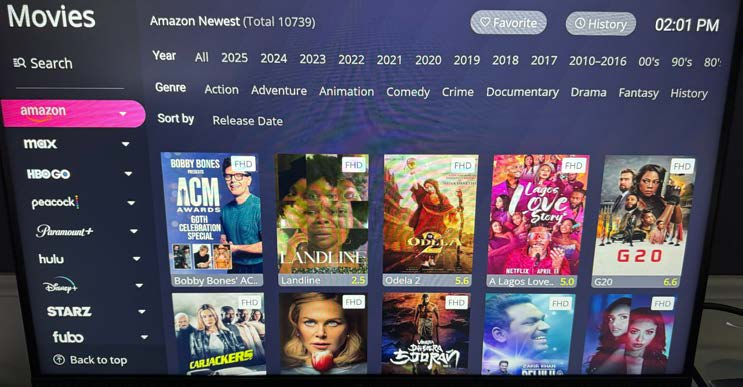
    This is another app for streaming movies and TV series. The only difference is that this app

    classifies the shows by streaming Platform.


    Select the category you wish to watch, either Movie or TV Series.

    You will now see that the left side classifies the shows and movies by the streaming platform.

    You can also search for a show or movie if you couldn’t locate it on Heat VOD.

    Backup by Heat

    This is a backup live TV channel if the main Heat Live isn’t functioning. It works the same as the

    Heat Live app


    Troubleshooting

    Please refer to pages 7 and 8 of the vSeeBox instruction manual that came with your device.
General Question

1. What is vSeeBox?
vSeeBox is one of the best-selling TV boxes full of Android. To use our vSeeBox, just plug it into the TV, connect to Wi-Fi or Ethernet, and then you can enjoy the best home entertainment experience ever.

The latest V3 Plus models include: quad-core 64-bit CPU processor, 4GB RAM, 64GB internal storage, Android 11 TV, a new powerful chipset Amlogic 905Y4, supporting 10-bit HDR decoding, up to 8K@60fps, 2R2R dual Wi-Fi 6, up to 867mbps, and LAN network up to 1000mbps.vSeeBox V3 Pro adopts H.265/. Compared with H.264, H.265 image processing technology doubles the data compression ratio under the same video quality, saves 50% of network bandwidth resources, and allows you to watch more smoothly with the same image quality and enjoy a high-quality experience with less buffering.
2. Is vSeeBox Legal?
vSeeBox is a legal android device.
3. Where can I use the vSeeBox?
You can use it anywhere in the world, you can take it for travelling/road trips as well.
4. Any requirements for using vSeeBox?
You just need a TV/monitor with an HDMI port and Wi-Fi/Ethernet network connected with vSeeBox. We recommend an over 15 Mbps network with Ethernet for smooth streaming.
5. Can I install my apps on vSeeBox?
Yes absolutely. vSeeBox is highly compatible with the Google Android TV system. We recommend downloading all official apps from Google Play Store to ensure they work properly.
6. What internet speed do I need for using vSeeBox?
We recommend an over 15 Mbps network with Ethernet for smooth streaming.
7. What type of TF card can be used and the maximum storage?
You can insert a TF card to order to expand the storage. It supports FAT format with 2GB, 4GB, 8GB, 16GB, 32GB, and 64GB. However, apps must be installed on the device to use (in Apk file).
8. Where can I purchase the vSeeBox?
You can find it with our local distributors or online stores. Please be reminded to find authorized distributors to ensure they are selling genuine products.
9.Do I need a VPN to use vSeeBox?
Not compulsory to have VPN to use vSeeBox. If you use 3rd party apps often / need to change the location for a service area with apps like Netflix, we recommend having one.

vSeeBox Setup and Installation

1.How can I change the picture quality?
Some of our VODs have different quality versions for you to choose from. You can adjust according to your network environment. Press Menu button on your remote during the VOD streaming, in Quality, you can choose High / Normal / Low quality, high quality maybe up to 4K version
2. How can I set s movie or TV series to my favorite?

When you select and click on any VOD, there are “Play”, “Info” and “Favorite” buttons on the page before you watch it. You can click the “Favorite” button to add it to your favorite.

3.Hpw to add to faborites ?

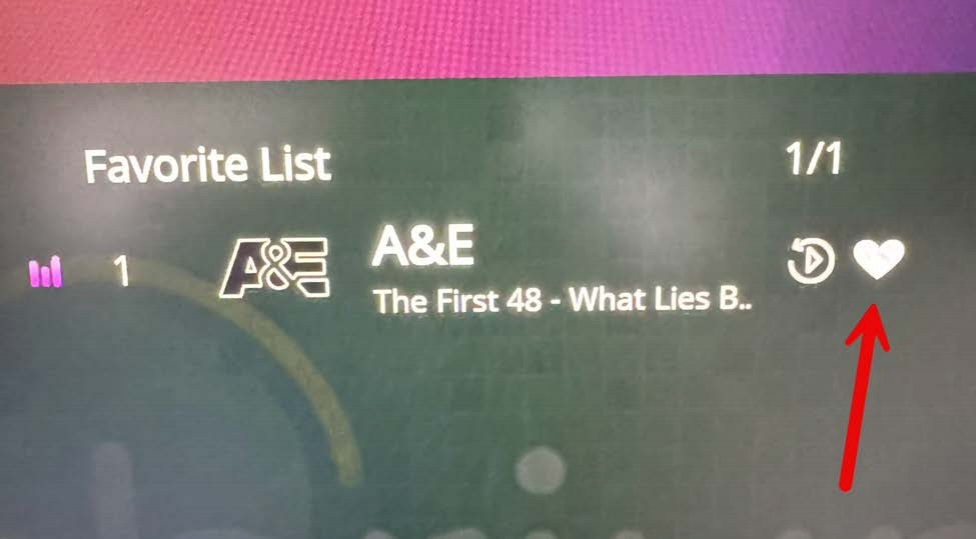
1st way: Long press the “OK” button of your remote while hovering on the channel, white heart icon appears when it successfully added to Favorite List. Vice Versa, long press the “OK” button over the channel again to cancel favorite.

2nd way: Inside the Heat Live app, visit the MENU page, then move to Favorite, and you can select your favorite channels on the whole channel list. Vice Versa, select it again to cancel your favorite.

4. How to install my apps on vSeeBox?
We recommend using Google Play Store, as our vSeeBox is highly compatible with Android TV, you can get all the official apps such as Netflix, YouTube TV, and Disney+ there.

For some 3rd party apps out of the Google Play Store, you can visit the Market on Home Page. We have added some common 3rd party apps in the vSee Market for easy downloading and installation.
5.How to uninstall apps on vSeeBox?
On the 1st row of the Home page, Settings, Apps, select the app(s) you want to uninstall, and click Uninstall.
6. How to update my vSeeBox?
vSeeBox supports Over-The-Air updates to keep your device updated. On the 3rd row of the Home Page, select the Software update. You can check if any new updates with Online Update.
7.How to reset my vSeeBox? Will factory reset erase my Apps?
Factory reset will erase all data and caches on the vSeeBox. However, you can install the apps back after resetting.You can find that on: 3rd row home screen - system settings - device preference - reset - erase everything.
8.TV box missing after setupHow to reset my vSeeBox? Will factory reset erase my Apps?
Please confirm that network has been connected first. You can open YouTube TV and see if any videos can be playing.

If network connected but Apps still not showing on Home Screen, we recommend doing a factory reset if you are experiencing unusual glitching from setup. You can find that on: 3rd row home screen - system settings - device preference - reset - erase everything.
9.How can I turn subtitles ON/OFF?
Some of our VODs have different subtitles even in different languages for you to choose from. Press the Menu button on your remote during the VOD streaming, in Subtitles, you can choose None (for closing subtitles), or subtitles in different languages.
10.How can I change the track language to of A VOD?
Some of our VODs have different track languages for you to choose. Press the Menu button on your remote during the VOD streaming, in Track, you can choose English, Español and more according to availability.

Purchase (Elite Ultra, V5 Pro, V3 Plus, V3 Pro)

1. What’s the difference between model V3 Pro and V3 Plus?
The main difference is that the decoding performance and loading speed of vSeeBox V3 Plus have been greatly improved compared with vSeeBox V3 Pro.
Here’s what’s vSeeBox V3 Plus new:
1: Multi-track selection
2: Multi-subtitle selection
3: Time shift function
2. What’s the difference between model V3 Plus and V5 Pro?
The main differences between the vSeeBox V3 Plus and V5 Pro models are as follows:

1. Operating System: The V5 Pro is equipped with Android 12.0 OS, while the V3 Plus runs on Android 11.0 OS.
2. Remote Control: The V5 Pro features a larger Bluetooth Voice Remote, whereas the V3 Plus may have a different remote design.
3. Storage: The V5 Pro offers 32GB eMMC internal storage, while the V3 Plus may come with 64GB eMMC internal storage.
4. Video Output: The V5 Pro supports 6K@60fps and 4K Ultra HDR output, whereas the V3 Plus supports 4K Ultra HDR output and 8K video decoding output.
5. Processor: The V5 Pro may be powered by a quad-core ARM Cortex-A53 Processor, while the V3 Plus may have a different chipset.
6. Features: The V5 Pro may introduce new features or enhancements compared to the V3 Plus model to provide an advanced and improved user experience.
3. What’s the difference between model V5 Pro and V3 Pro?
The main differences between the vSeeBox V5 Pro and V3 Pro models are as follows:

1. Hardware and Performance: The V5 Pro features upgraded hardware specifications such as Android 12.0 OS, a larger Bluetooth Voice Remote, and WiFi 6 support, offering improved performance and connectivity compared to the V3 Pro.
2. Storage Capacity: The V5 Pro comes with 4GB DDR3 RAM and 32GB eMMC internal storage, while the V3 Pro has 4GB DDR3 RAM and 64GB eMMC internal storage.
3. Video Output:The V5 Pro supports 6K@60fps and 4K Ultra HDR output, whereas the V3 Pro supports 4K Ultra HDR output and 8K video decoding output.
4. Processor: The V5 Pro is equipped with a quad-core ARM Cortex-A53 Processor, while the V3 Pro features the Amlogic 905Y4 chipset.
4. What’s the difference between model V3 Plus ,V5 Pro, V3 Pro and vSeeBox Elite?
vSeeBox V3 Plus:
- Operating System: Android 11.0 OS
- Chipset: Powerful Amlogic 905Y4 chipset
- Storage: 64GB eMMC Internal Storage
- Video Output: 4K Ultra HDR output and 8K video decoding output
- Features: Intuitive Bluetooth remote

vSeeBox V5 Pro:
- Operating System: Android 12.0 OS
- Storage: 32GB eMMC Internal Storage
- Video Output: 6K@60fps, 4K Ultra HDR output
- Processor: Quad-core ARM Cortex-A53 Processor
- Features: Large Bluetooth Voice Remote

vSeeBox V3 Pro:
- Operating System: Android 11.0 OS
- Storage: 64GB eMMC Internal Storage
- Video Output: 4K Ultra HDR output and 8K video decoding output
- Features: Intuitive Bluetooth remote

vSeeBox Elite:
- Operating System: Android 10.0 OS
- Storage: 128GB eMMC Internal Storage
- Video Output: 6K@60fps, 4K Ultra HDR output and 8K video decoding output
- Features: Parental Control

Each model offers unique features, hardware specifications, and functionalities tailored to different user preferences and needs.
5. What is vSeeBox Elite Ultra?
vSeeBox Elite Ultra ($449)
(2025 Newest Model)
  • New: Android 12 TV System
  • 4 GB DDR3 RAM
  • 128 GB eMMC Internal Storage
  • Dual-Band Wi-Fi 6 (RTL8822CS 2T2R) & Bluetooth 5.0
  • Quad-core ARM Cortex-A53 Processor
  • Support 8K@60 fps & 4K Ultra HDR output

Other Questions

1. Network issue – say remembered instead of connected
Thank you for your help first. If the network is indicating "remembered" but not "connected", it means the password error. You can re-connect the network by: 3rd on row home screen - system settings - network - click ok on your wifi network - forgot network. 
2. Shut down / sleeping mode – which shall I choose?
We suggest shutting it down (power off) if you are not using it. It will release the internal storage and make the box work more smoothly with next usage.

The sleeping mode is for a short period of not using it. The tv box would not be turned off completely for a faster wake-up time.
3. Can I get a refund if not satisfied?
It depends on your seller’s policy. Please confirm with them before purchasing.